
Click HERE for an interactive tutorial. Scroll to the bottom for animated steps.
Detailed Step-by-Step Tutorial
Quantity Discounts
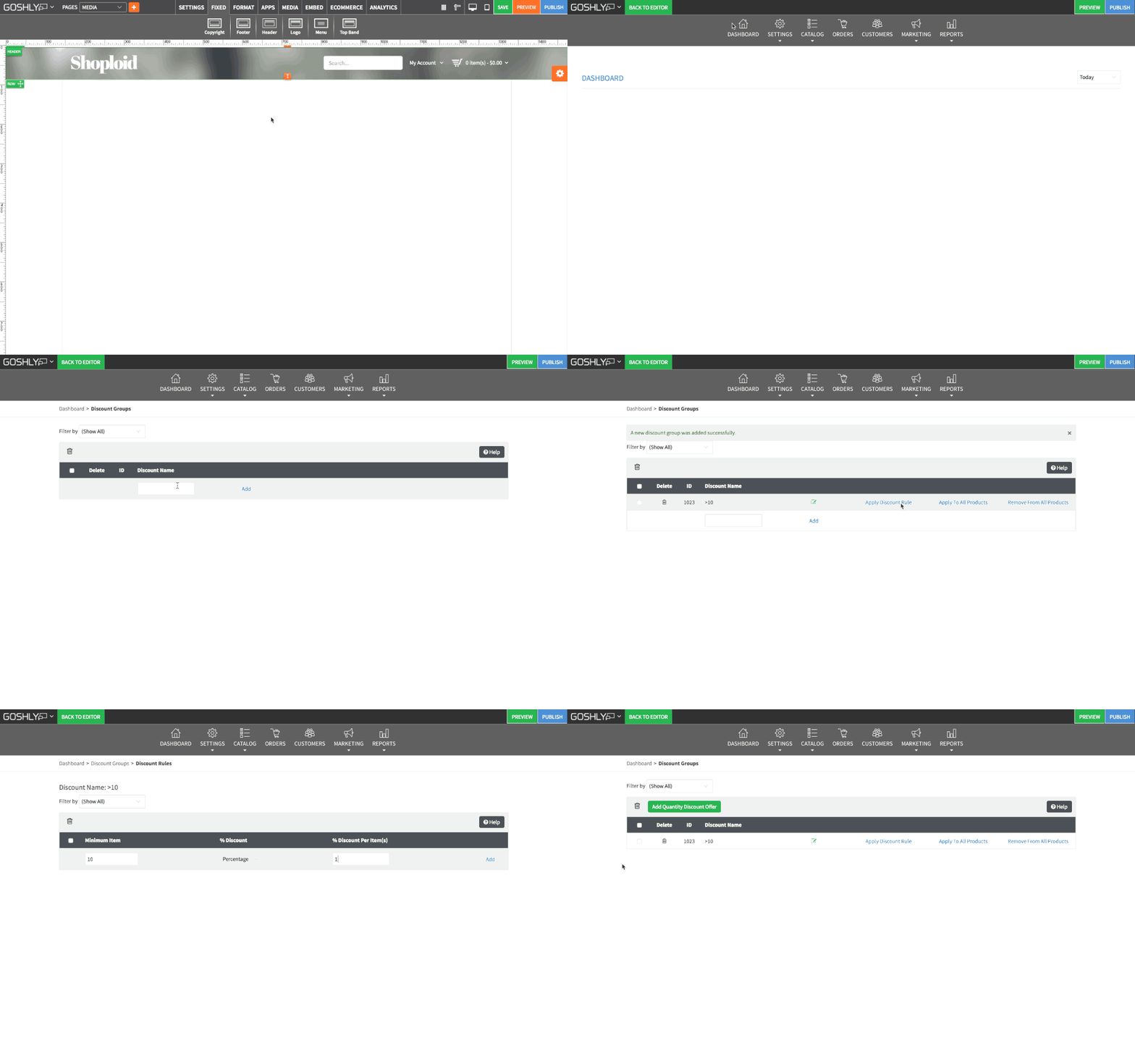
- Go to ECOMMERCE > Store Management

- Go to Marketing > Quantity Discount

- Filter By: Dropdown allows to filter quantity discounts by various criteria.
- Delete: Delete an individual quantity discount or use checkboxes to delete multiple at once.
- ID: Displays IDs for each quantity discount.
- Discount Name: Displays names for each quantity discount.
- Edit: Allows to change discount name.
- Apply Discount Rule: Click to add and apply rules for the discount group.
- Apply To All Products: Click to apply the quantity discount to all products. NOTE: this action will remove any previous Quantity Discounts applied to individual products.
- Remove From All Products: Click to remove the quantity discount from all products.

- Click Apply Discount Rules for the discount group you want to apply discounts rules to.
- Minimum Item: Type in the minimum number of items that have to be purchased to activate the discount.
- Discount Type: Choose to offer discount as a fixed price or as a percentage.
- Discount Per Item(s): Enter the amount (depending on discount type selected, percentage or fixed price) of discount offered per item.
- Click Add.

Add Quantity Discount
- Click

- Enter Discount Name.
- Click Add.
Comments