
Click HERE for an interactive tutorial. Scroll to the bottom for animated steps.
Detailed Step-by-Step Tutorial
Add Blog
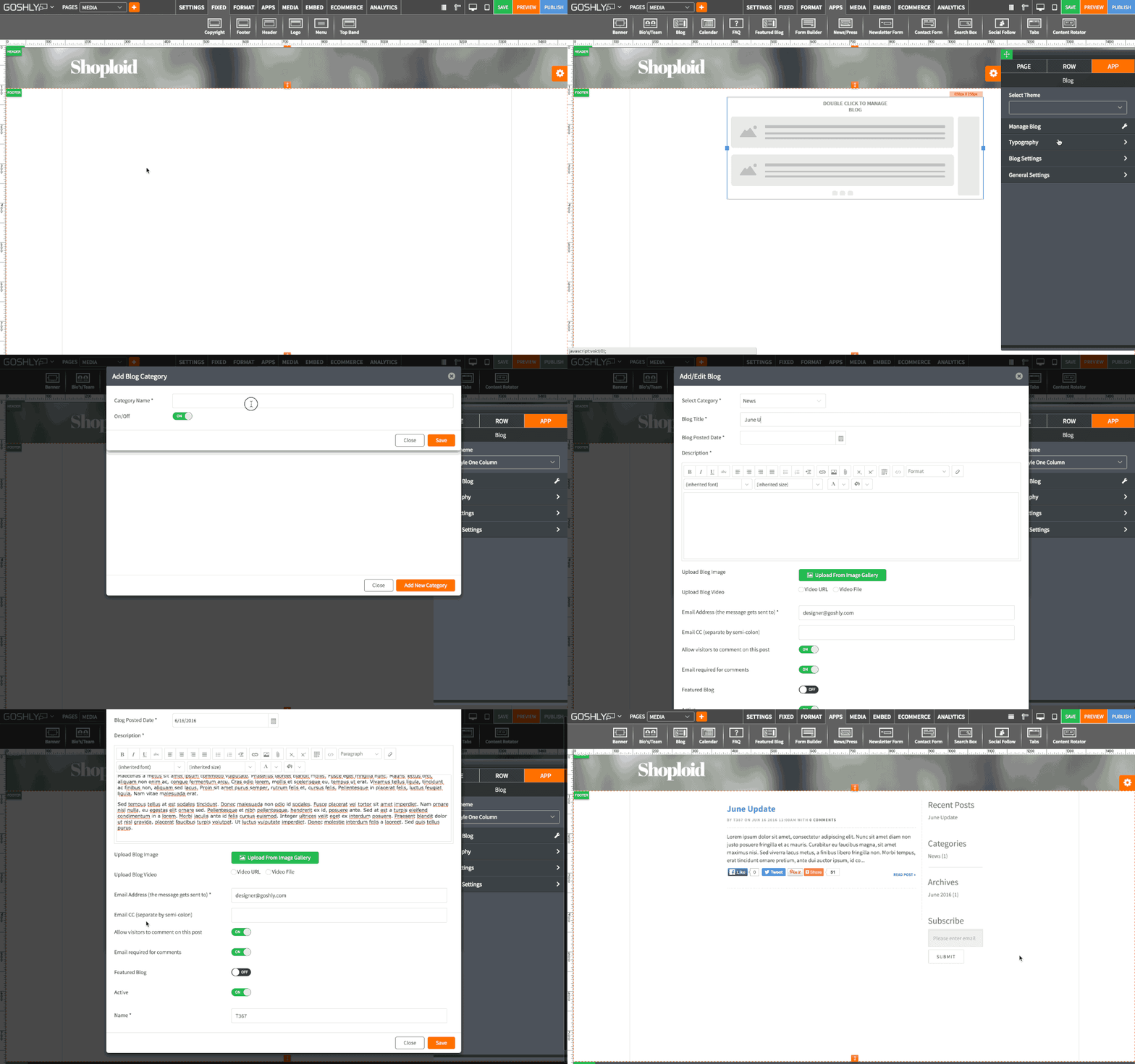
- Go to APPS at the top of the screen.
- Drag Blog widget to an area of the page where you'd like to add it to.

- Double-click on the added Blog widget or right-click on to go to the Settings Pane.
- Select Theme: Select a theme for the blog.

Manage Blog
- Blog List: Displays blog entry titles.
- Edit: Edit existing blog posts.
- Delete: Delete a blog post.
- On/Off: Toggle to make blog active or inactive.
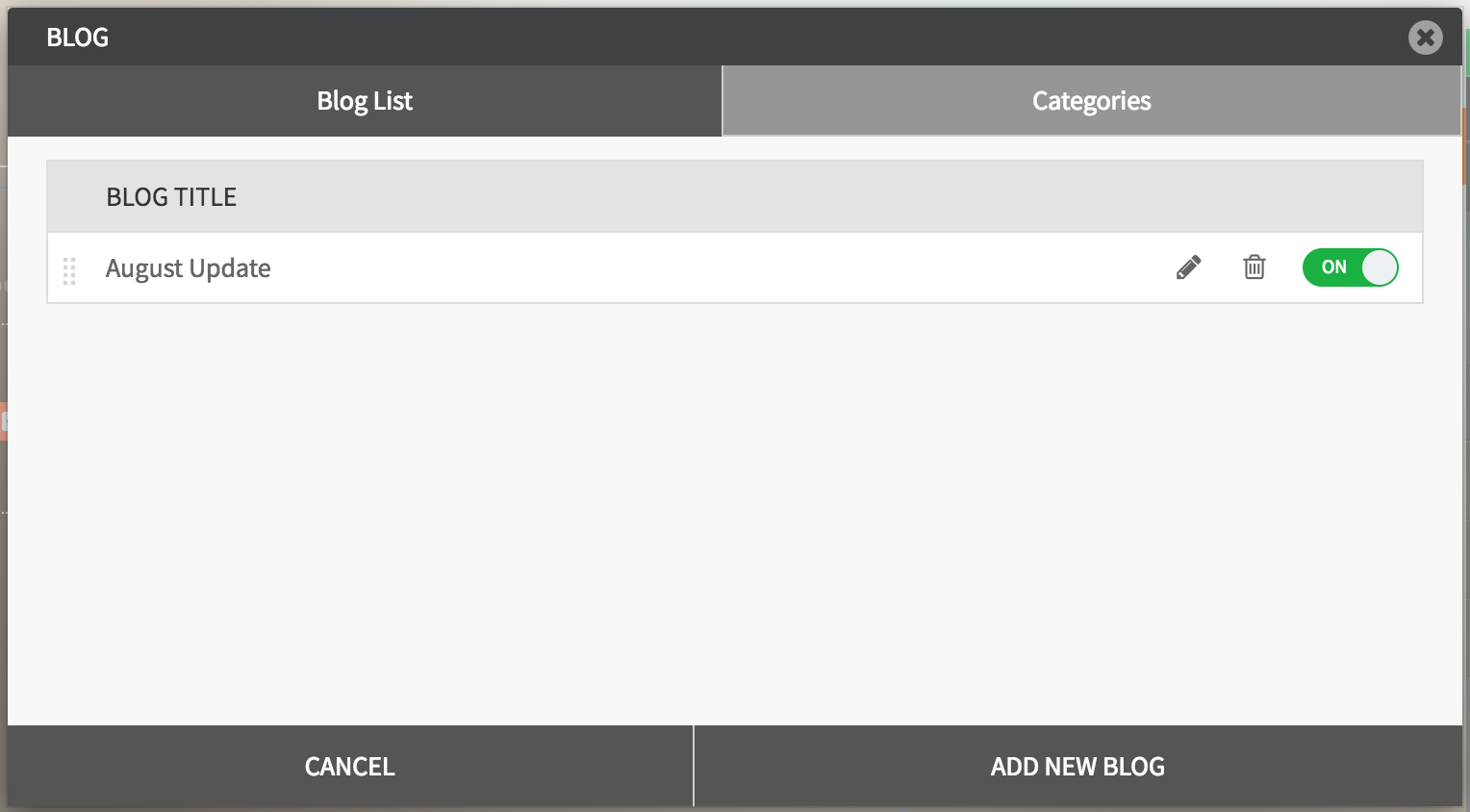
ADD NEW BLOG
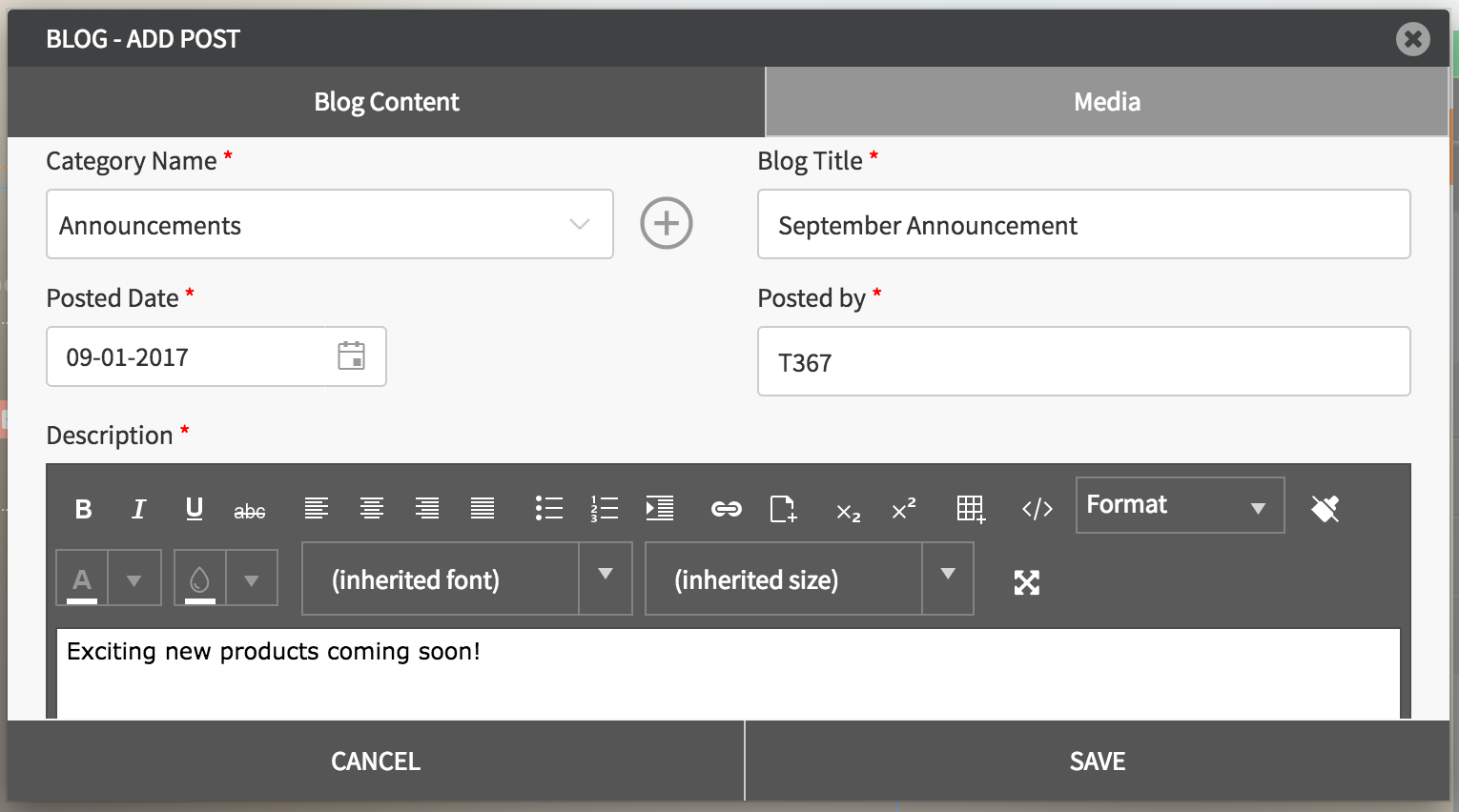
Blog Content tab:
- Select an existing category from the dropdown, enter Blog Title, choose the date, enter and format blog content.
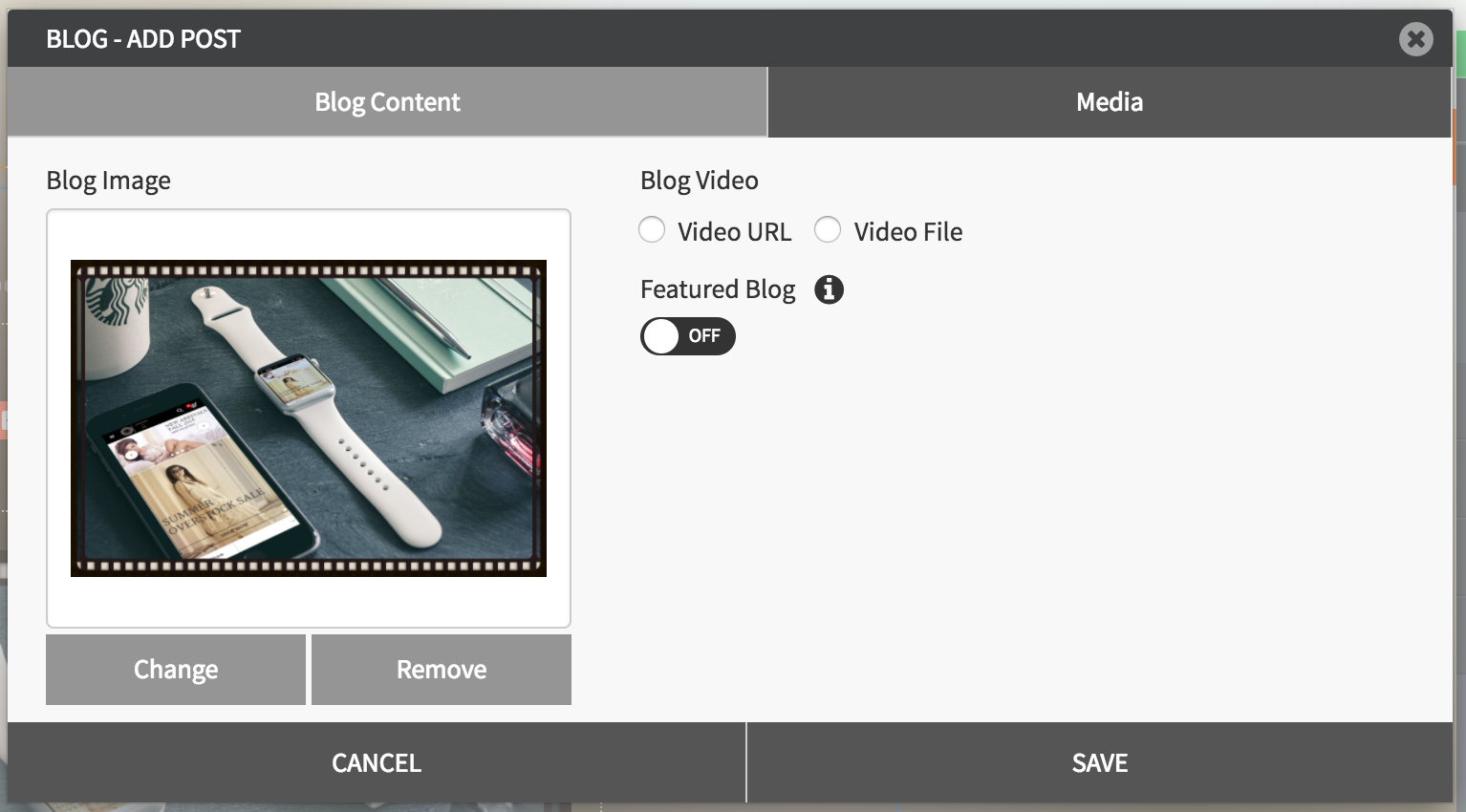
Media Tab:
- Upload an image or video to go along with your blog post.
- Click on the OFF slider to make the blog post a Featured Blog.
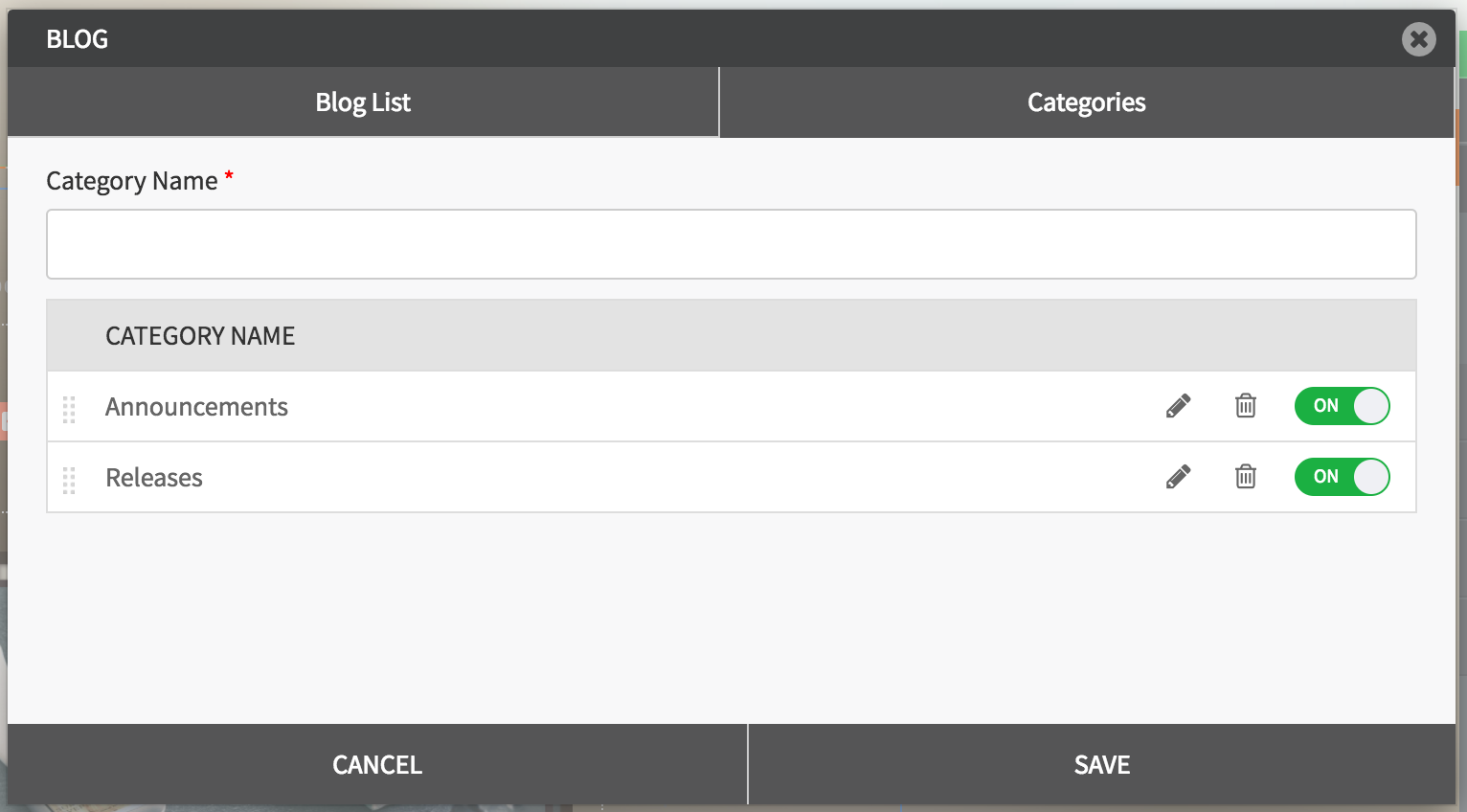
- Categories: Click the tab to manage blog categories or add a new one.
Typography
Define font settings for blog posts, main heading, and blog titles.

- Font Family: Choose font family.
- Font Color: Pick a color for the font.
- Font Size: Define size of the font.

Blog Settings
- Select default blog: Select the default blog that shows on your blog page.
- Require registration for comments: Enable to require commenters to register before posting.
- Require approval for comments: Enable to not show comments until they are approved.
- Show social media sharing bar on blog: Enable a social media sharing bar on the blog.
- Show recent posts on page: Enable to show recent posts on the page.
- Show categories on page: Enable to show blog categories on the page.
- Show blog archives on page: Enable to show blog archives on the page.
- Show most commented post on page: Enable to show most commented posts on the page.
- Show recent comments on page: Enable to show recent comments on the page.

General Settings
- Title: Enter the title.
- Show as Tooltip: Show the title as tooltip (text that appears when your mouse hovers over the blog).
- Top: Set top margin.
- Left: Set left margin.
- Width: Set the width.

Background:
- Color: Choose background color.
- Opacity: Set opacity for the background.
- Image: Enable to use an image as a background.
- Size: Choose background size (i.e. auto, 100%, etc.).
- Position: Set position of the background.
- Repeat: Choose repeat type for the background.

Border:
- Color: Choose border color.
- Style: Chose border style.
- Width: Choose the width of the border.
- Radius: Choose border corner radius.

Box Shadow:
- Shadow: Toggle ON to create a shadow for the blog.
- H-Shadow: Set horizontal position of the shadow.
- V-Shadow: Set vertical position of the shadow.
- Blur: Set blur value for the shadow.
- Spread: Define how far the shadow spreads.
- Color: Set the color for the shadow.
- Style: Select between inset and outset.

Comments