
Click HERE for an interactive tutorial. Scroll to the bottom for animated steps.
Detailed Step-by-Step Tutorial
Add Multi-Layout Sliders
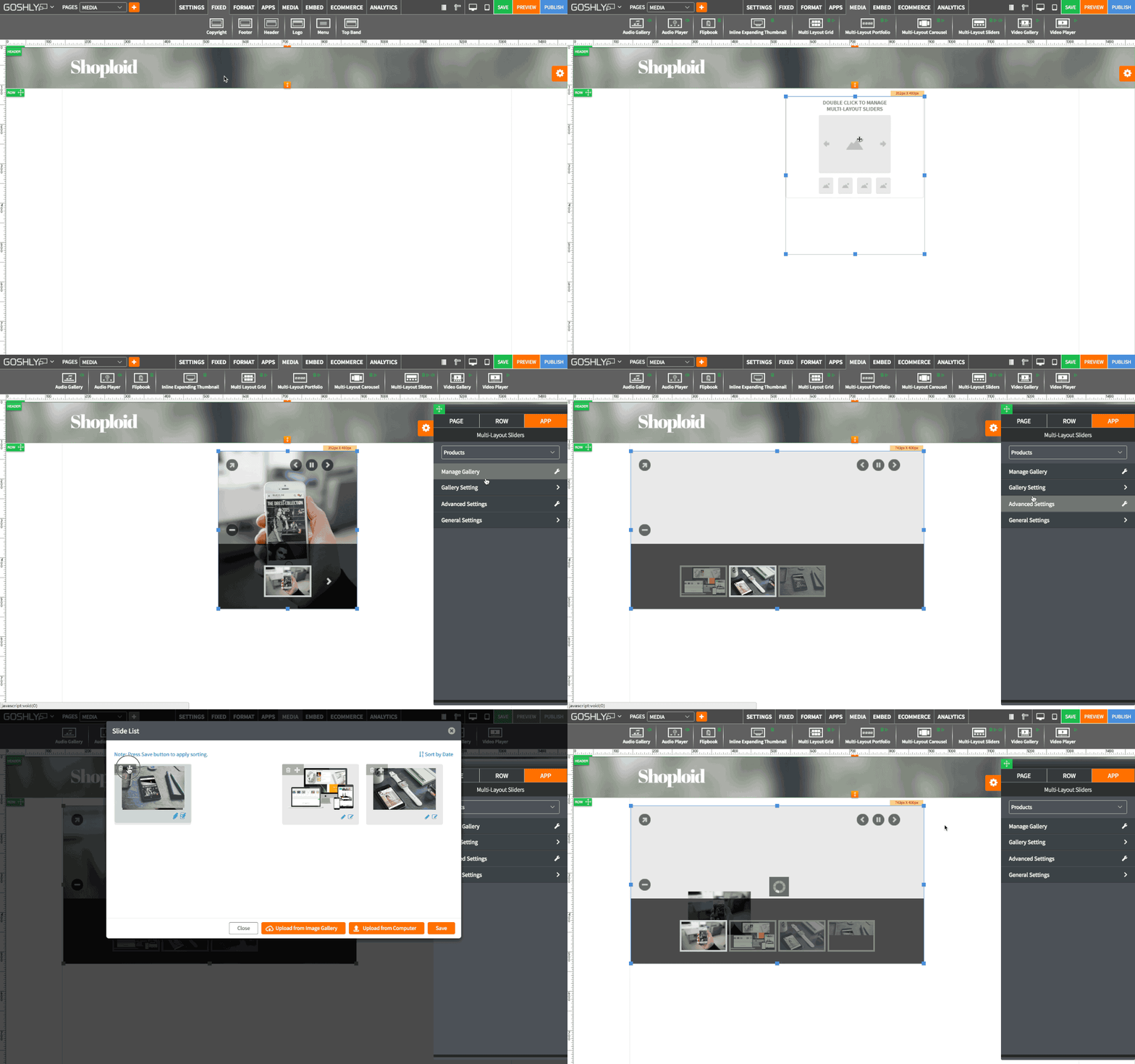
- Go to MEDIA at the top of the screen.
- Drag Multi-Layout Sliders widget to an area of the page where you'd like to add it to.

- Double-click on Multi-Layout Sliders or highlight it and go to Settings pane > APP.
- Select Gallery: If any galleries for multi-layout sliders have been previously created, select one from the dropdown list.

Create New Gallery
- Create New Gallery: Click to create a new gallery.
- Gallery Name: Give a new gallery a name.
- Click Save.

- Manage Slides: Click to add slides to the gallery.

- Upload from Image Gallery: Use the option to choose photos from Image Gallery for the slides.
AND/OR
- Upload from Computer: Use the option to upload photos from your computer for the slides.
You can drag uploaded photos to re-arrange them, click Edit button to use image editor, or annotate button to add image name, description, and url.
- Click Save.

Gallery Settings
- Gallery Name: Enter a name for the gallery.
- Gallery Transition: Select a transition type for the gallery from the dropdown list.
- Slide Show: Toggle ON to have slides play automatically.
- Random Image Play: Toggle ON to shuffle slides when slide show is being played.
- Auto Open Description: Toggle ON to automatically show description for the slides.
- Playlist Position: Choose the position of playlist (slide thumbnails).
- Playlist Orientation: Choose the orientation for playlist.
- Auto Open Playlist: Toggle ON to show playlist automatically (does not require user to click a + button).
- Hide Playlist: Toggle ON to hide playlist entirely.

- Visible Menu Items: Set the number of visible menu items with the slider.
- Visible Thumbnails: Set the number of visible thumbnails with the slider.
- Use Video: Toggle ON to allow video in the gallery.
- Video Auto Play: Toggle ON to play videos in the gallery automatically.
- Auto Open Audio Player: Toggle ON to open audio player automatically.
- Default Volume: Set default audio volume with the slider.
- Include Video in Slideshow: Toggle ON to include videos if Slide Show is enabled.

General Settings
- Title: Enter the title.
- Show as Tooltip: Show the title as tooltip (text that appears when your mouse hovers over the multi-layout grid gallery).
- Top: Set top margin.
- Left: Set left margin.
- Width: Set the width.
- Fixed Width: Toggle ON to fix audio gallery's width.

Background
- Color: Choose background color.
- Opacity: Set opacity for the background.
- Image: Enable to use an image as a background.
- Size: Choose background size (i.e. auto, 100%, etc.).
- Position: Set position of the background.
- Repeat: Choose repeat type for the background.

Border
- Color: Choose border color.
- Style: Chose border style.
- Width: Choose the width of the border.
- Radius: Choose border corner radius.

Box Shadow
- Shadow: Toggle ON to create a shadow for the contact form.
- H-Shadow: Set horizontal position of the shadow.
- V-Shadow: Set vertical position of the shadow.
- Blur: Set blur value for the shadow.
- Spread: Define how far the shadow spreads.
- Color: Set the color for the shadow.
- Style: Select between inset and outset.

Comments