
Click HERE for an interactive tutorial. Scroll to the bottom for animated steps.
Detailed Step-by-Step Tutorial
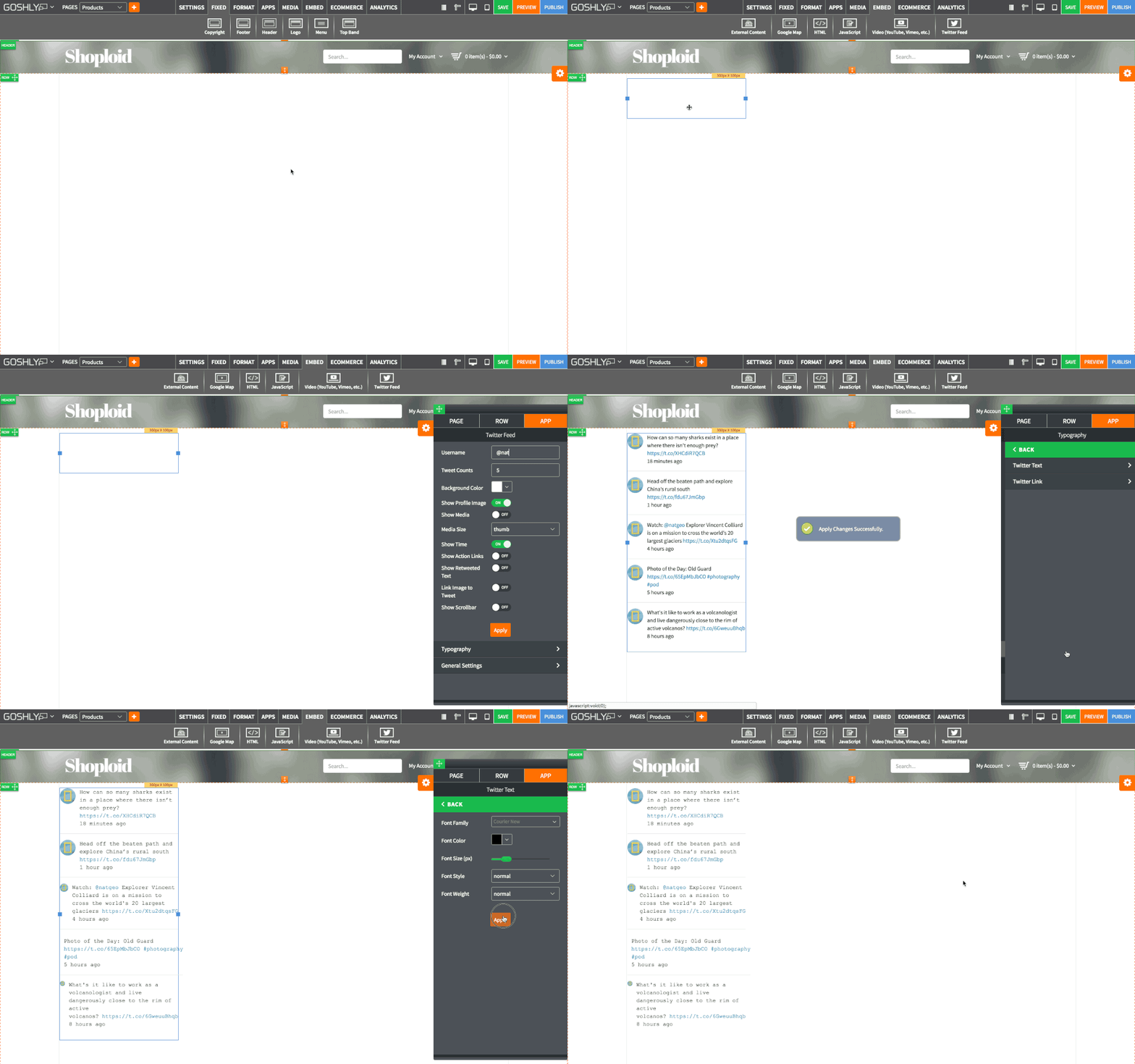
Add Twitter Feed
- Go to EMBED at the top of the page.
- Drag Twitter Feed widget to an area of the page where you'd like to add it to.

Manage Twitter Feed
- Double-click on twitter feed or highlight it and go to Settings pane > APP.
- Username: Enter the username of the Twitter account to display in the Twitter Feed widget.
- Tweet Counts: Enter a number of recent tweets you would like to display.
- Background Color: Choose a color for the widget's background.
- Show Profile Image: Toggle ON to display Twitter profile image next to each tweet in the widget.
- Show Media: Toggle ON to display tweeted media in the widget.
- Media Size: Choose the size of the displayed media.
- Show Time: Toggle ON to show the time tweets were sent.
- Show Action Links: Toggle ON to display button for Reply, Retweet, and Like.
- Show Retweeted Text: Toggle ON to include retweets in the Twitter Feed.
- Link Image to Tweet: Toggle ON to link tweeted photos to the original tweet.
- Show Scrollbar: Toggle ON to add scrollbar to the Twitter Feed widget.
- Height: If scrollbar is turned on, set the height of the Twitter Feed widget.

Typography

Twitter Text and Twitter Link
- Font Family: Choose a font.
- Font Color: Set font color with a color picker.
- Font Size: Use slider to set the font size.
- Font Style: Choose a style for the font (i.e. italic).
- Font Weight: Choose a weight for the font (i.e. bold).

General Settings
- Title: Enter the title.
- Show as Tooltip: Show the title as tooltip (text that appears when your mouse hovers over the google map).
- Top: Set top margin.
- Left: Set left margin.
- Width: Set the width.

Background
- Color: Choose background color.
- Opacity: Set opacity for the background.
- Image: Enable to use an image as a background.
- Size: Choose background size (i.e. auto, 100%, etc.).
- Position: Set position of the background.
- Repeat: Choose repeat type for the background.

Border
- Color: Choose border color.
- Style: Chose border style.
- Width: Choose the width of the border.
- Radius: Choose border corner radius.

Box Shadow
- Shadow: Toggle ON to create a shadow for the block quote.
- H-Shadow: Set horizontal position of the shadow.
- V-Shadow: Set vertical position of the shadow.
- Blur: Set blur value for the shadow.
- Spread: Define how far the shadow spreads.
- Color: Set the color for the shadow.
- Style: Select between inset and outset.

Comments